Supporting Color Contrast Settings
Introduction
Some people with visual disabilities using the web need more than the required default minimum color contrast. Additionally, people with visual or cognitive disabilities sometimes need combinations of colors that are different from those specified by an author. Operating systems provide settings that enable those users to increase contrast and choose alternate color themes. Web authors can ensure their content is accessible to those users by appropriately responding to such operating system settings. This section explains how to make components responsive to color and contrast settings and how to test support for those settings.
This section covers:
- Operating system and browser features that enable users to adjust rendered colors and contrast ratios.
- Using the CSS media queries that support user color and contrast settings (
prefers-contrast,prefers-color-scheme, andforced-colors). - Using
<system-colors>CSS data types to provide consistent rendering of components. - Using the value of
currentcolorto inherit the value of thecolorproperty value of text content that responds to user color and contrast settings. - The benefits of using SVG graphics when creating components that adapt to color contrast and theme settings.
User Options for Adjusting Colors and Contrast
The following table summarizes operating system settings that enable users to adjust color themes and increase contrast as well as authoring practices for supporting those settings in web content.
| Feature | OS | Description | Authoring Practices |
|---|---|---|---|
| Invert Colors |
Operating system accessibility setting that automatically transforms all rendered colors in all apps, including browser content, by subtracting each RGB value from 255. This is a simple way of enabling users to turn a light color theme into a dark color theme or vice-versa. It is a prominent feature in the accessibility settings of most operating systems. Examples of color inversion:
|
When this setting is enabled, some browsers set the CSS media query Inverting of colors can have unpleasant side effects, such as shadows turning into highlights, which can reduce the readability of the content, use gradients instead. For content to render well when invert colors is enabled, ensure it meets the minimum color requirements specified by Web Content Accessibility Guidelines (WCAG) and avoid using shadows. |
|
| Increase contrast | Operating system accessibility setting indicating the user prefers contrast that is stronger than the default minimum. Typically, this setting does not automatically change rendering of native apps or web content, so it only works when authors provide support for it. Each operating system supports this setting differently; there is no standard that specifies how much contrast should be increased when this setting is enabled. A reasonable target for web content is specified by WCAG 1.4.6: Contrast (Enhanced). |
When this setting is enabled, the CSS media query prefers-contrast is set to more.
Develop a higher contrast color scheme and use this media query to determine when to enable it.
This can also include switching to use system-colors CSS media types.
|
|
|
Color Scheme (AKA Light and Dark Modes) |
An operating system setting that enables users to choose between a light and dark color scheme.
The default is usually the light color scheme.
Typically, this setting does not automatically change rendering of native apps or web content, so it only works when developers provide support for it.
People switch to the dark color scheme in dark settings, e.g. at night, because it can make content easier to read or be less disruptive to other people.
However, people with certain visual disabilities prefer a dark color scheme as their default.
|
The CSS media query prefers-color-scheme identifies the current color scheme by returning light or dark.
Develop styles for dark text on a light background and light text on a dark background and use this media query to apply the appropriate style.
Ensure the text content and components for both settings meet
WCAG 1.4.3: Contrast (Minimum).
|
|
|
Contrast Themes (AKA Forced Colors) |
Windows 10 and later. |
Operating system accessibility feature that automatically forces all native apps and web content to render using an alternative color theme chosen by the user.
Some of the themes are designed to provide extra high contrast, and users can customize their chosen color theme.
Browsers replace author specified colors with user specified colors based on the type of HTML element.
Browser selections for replacement colors generally respect the system colors described below.
Note that ARIA attributes do not inform replacement color selection, e.g., a div with role button renders with text colors, not button colors.
|
When a user selects a contrast theme, the CSS media query forced-colors is set to active.
Use currentcolor and system-color values to style user interface controls and custom widgets to the user preferences.
|
Invert Colors
The invert colors accessibility setting is an operating system feature that automatically transforms all rendered colors to their opposite.
For example, content rendered as white is changed to black.
Content styled as blue is rendered as a brown, i.e., a mixture of red and green.
The inverted-colors: inverted CSS media query can be used to detect when the user setting for inverting colors, but it is not widely supported in browsers.
To support the invert colors setting:
- Develop a default color scheme that meets WCAG 1.4.3: Contrast (Minimum) requirement.
- Avoid using shadow styling, use gradients instead.
Invert Colors Example
The following example illustrates how a switch element is rendered on macOS both when invert colors is disabled and enabled.
| Setting | Screen Shot |
|---|---|
| Invert Colors: Off (default) | 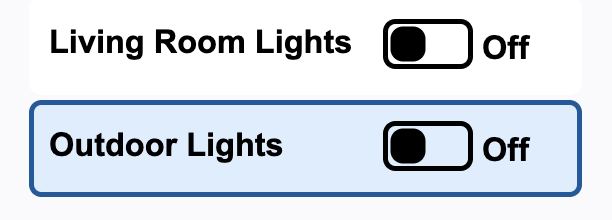 |
| Invert Colors: on | 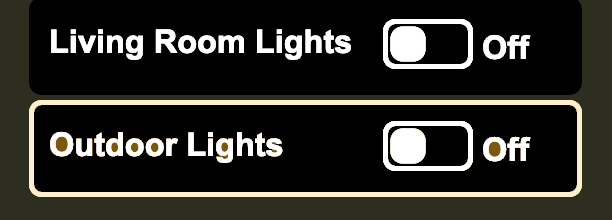 |
Increase Contrast
Increase contrast is an operating system feature, usually available in accessibility settings, that enables users to specify a preference for contrast that is higher than default minimum. When users turn on increased contrast, each operating system changes the contrast of its own user interface differently; there is no standard for how much contrast should be increased. Typically, this setting does not automatically change rendering of native apps or web content, so users benefit only when authors provide support for it.
To support the increase contrast setting:
- Develop an increased contrast color scheme that meets or exceeds the requirements specified in WCAG 1.4.6: Contrast (Enhanced).
- When the the
prefers-contrastmedia query changes fromno-preferencetomore, render content using the increased contrast color scheme.
Note: Operating systems that support the forced-colors media query set prefers-contrast to custom when the forced-colors is set to active.
Increase Contrast Example
Enable the "increased contrast" feature on your device, and color contrast ratios in the below example will change:
- Text contrast increases from 12.8 to 18.1.
- Contrast of border and fill for the button increases from 4.6 to 12.2.
prefers-contrast |
Text | Button | ||||
|---|---|---|---|---|---|---|
| BG | Text | CCR | BG | Fill | CCR | |
no-preference |
|
|
12.8 |
|
|
4.6 |
more
|
|
|
18.1 |
|
|
12.2 |
CSS Media Query Code
@media (prefers-contrast: more) {
  button[role="switch"] {
    background-color: #eeeeee;
    color: #000;

    .label {
      color: #000;
    }

    svg {
      rect {
        fill: #0051A4;
        stroke: #061d3a;
      }

      circle {
        &.off,
        &.on {
          stroke: #061d3a;
          fill: #fff;
        }
      }
    }
  }
}
Testing Increase Contrast
In each operating system used by the target audience:
- Turn on the increase contrast feature, which is typically located in accessibility settings.
- Verify that the color contrast ratios of text and components meets or exceeds the requirements specified by WCAG 1.4.6: Contrast (Enhanced).
Color Scheme (Light and Dark Modes)
The color scheme known as dark mode is used by people in dark settings, e.g. at night, because it can make content easier to read or be less disruptive to others. While such use cases were primary drivers of its development, dark mode also significantly improves accessibility for many people with visual impairments.
To support the increase contrast setting:
-
To support dark mode, develop styles for dark text on a light background and light text on a dark background. The CSS
light-darkfunction or a CSS media queryprefers-color-scheme, the media query identifies the current color scheme by returninglightordark. - Choose color palettes that are easy to read in both light and dark modes.
- Instead of shadow styling use highlights and gradients, since shadow styling is difficult to perceive in dark mode.
- Use CSS filters on images to reduce their brightness to make them easier to view in dark mode (*** is this advice we want to give? ***).
- Ensure the text content and components of both color schemes meet or exceed the color contrast ratios specified by WCAG 1.4.3: Contrast (Minimum).
Dark mode design resources:
- CSS-Tricks: Dark Mode in CSS Guide
- UX Design Institute: How to design for dark mode: a practical guide
- Medium: How to Design Accessible Dark Mode Interfaces
Color Scheme Example: Switch
The below example of a switch shows how colors can change when users switch color schemes. Enable "dark mode" on your device, and the example will be rendered with the dark color scheme.
prefers-color-scheme
|
Text | Button | ||||
|---|---|---|---|---|---|---|
| BG | Text | CCR | BG | Fill | CCR | |
light |
|
|
12.8 |
|
|
4.6 |
dark
|
|
|
12.6 |
|
|
5.36 |
CSS Media Query Code
:root {
  color-scheme: light dark;
}

button.color-scheme[role="switch"] {
  display: block;
  margin: 2px;
  padding: 4px 4px 8px 8px;
  border: 0 solid light-dark(#005a9c, #add8e6);
  border-radius: 5px;
  width: 17em;
  height: 3em;
  text-align: left;
  background-color: light-dark(#e9e9e9, #333);
  color: light-dark(#242424, #fff);

  .label {
    position: relative;
    top: -3px;
    display: inline-block;
    padding: 0;
    margin: 0;
    width: 10em;
    vertical-align: middle;
    color: light-dark(#242424, #fff);
  }

  svg {
    rect {
      fill: light-dark(#a1a1a1, #36c);
      stroke-width: 2;
      stroke: light-dark(#757575, #36c);
    }

    circle {
      &.off {
        display: block;
        stroke: light-dark(#757575, #fff);
        fill: light-dark(#fff, #fff);
        fill-opacity: 1;
      }
    }
  }
}
Color Scheme Example: Wikipedia Page
The following example illustrates how Wikipedia supports the color scheme media query. The example includes showing the "Appearance" sidebar allowing the user to choose the light or dark scheme and other rendering options for text size and column width.
| Media Query | Screen Shot |
|---|---|
prefers-color-scheme: light
|
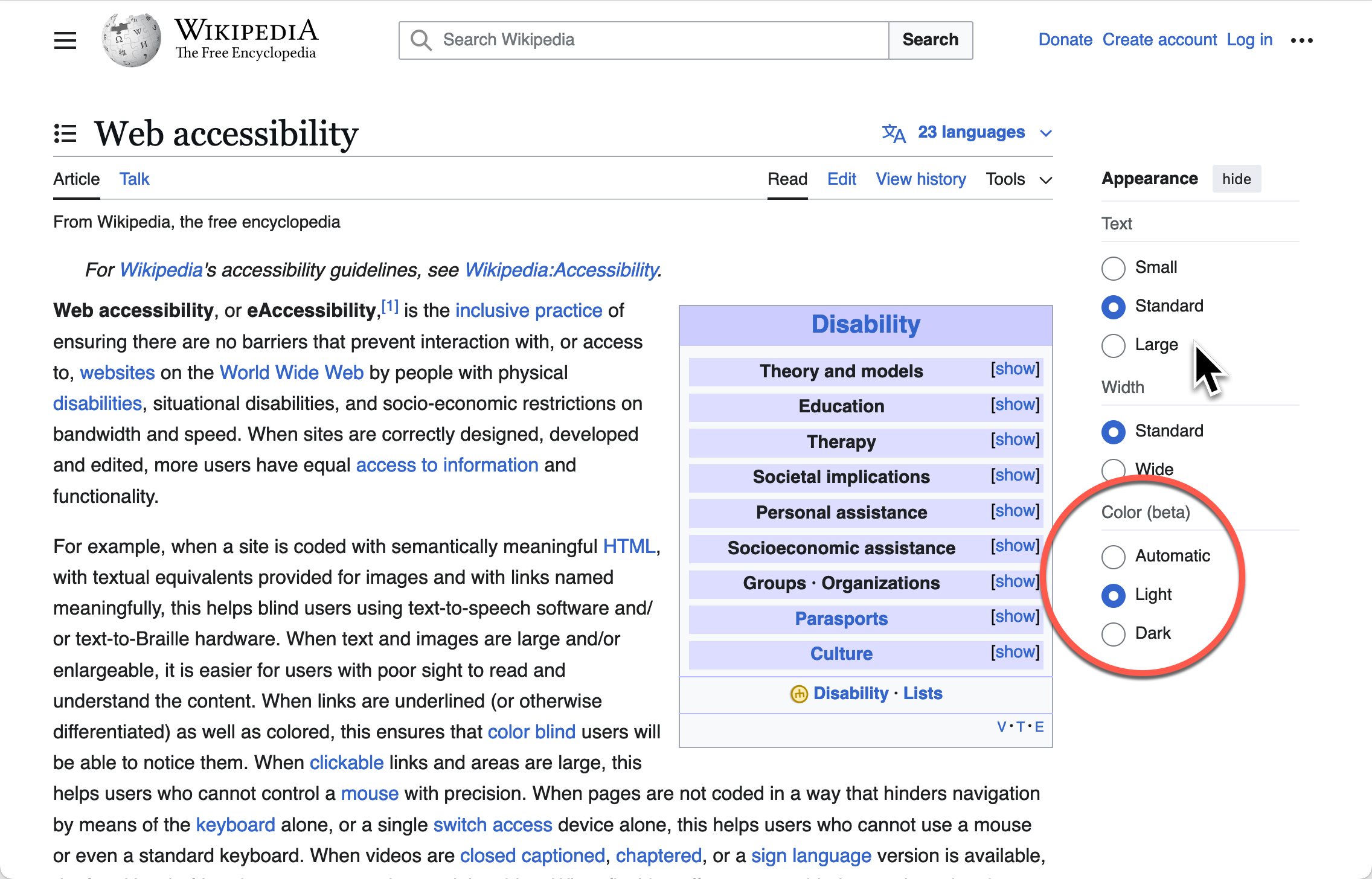
|
prefers-color-scheme: dark
|
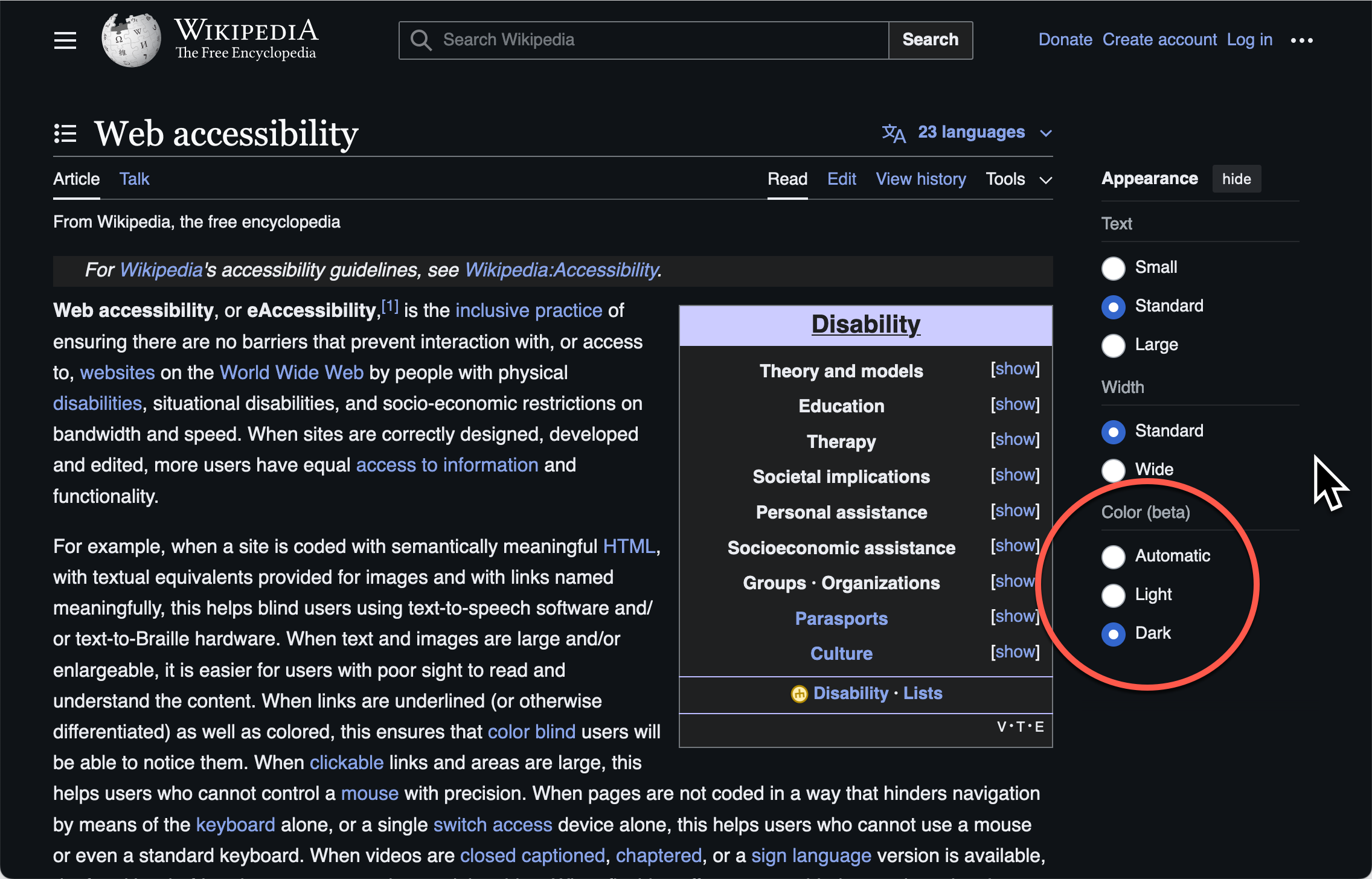
|
Testing Dark Color Scheme
In each operating system used by the target audience:
- Turn on the dark color theme.
- Verify contrast for text and components meet or exceed the contrast ratios specified by WCAG 1.4.2: Contrast (Minimum).
Contrast Themes (Forced Colors)
Contrast themes are an operating system accessibility feature available in Windows 10 and 11 that automatically forces all native apps and web content to render using an alternative color theme chosen by the user. Themes are designed to provide extra high contrast, and users can customize their chosen color theme to their preferred colors. Browsers automatically replace each author specified color with one of a small set of colors specified by the user's chosen theme based on the type of HTML element. The replacement color used by a browser for a specific element corresponds to one of the system colors described below. In addition to forcing color changes the browser also ignores background images and gradients. The following table shows the color themes users can choose in Windows 11. Each theme is a set of eight colors, which the user can customize.
| Feature | Windows 11 Contrast Themes | |||
|---|---|---|---|---|
| Aquatic | Desert | Dusk | Night Sky | |
| Background | #202020 | #fffaef | #2d3236 | #000000 |
| Text | #ffffff | #3d3d3d | #ffffff | #ffffff |
| Hyperlink | #75e9fc | #1c5e75 | #70ebde | #8080ff |
| Inactive Text | #a6a6a6 | #676767 | #a6a6a6 | #a6a6a6 |
| Selected Background | #8ee3f0 | #903909 | #a1bfde | #d6b4fd |
| Selected Text | #263b50 | #fff5e3 | #212d3b | #2b2b2b |
| Button Background | #202020 | #fffaef | #2d3236 | #000000 |
| Button Text | #ffffff | #202020 | #b6f6f0 | #ffee32 |
Note: In Windows 10 and Windows 11 users can edit the colors of a contrast theme to create their own unique theme.
Supporting Contrast Themes in Custom Components
ARIA attributes do not inform replacement color selection, e.g., a div with role button renders with text colors, not button colors.
When the user chooses a contrast theme, such as described by
Windows 11 Accessibility Settings > Contrast Theme,
browsers set the forced-colors property to active.
When using ARIA to alter the semantics of elements authors need to verify the appropriate system color for each feature when forced colors are enabled.
The following table provides guidance on how system colors should be applied when forced colors is enabled for common user interface controls. When elements with altered semantics do not match the appropriate system color for elements, authors must set the appropriate system color using the forced-colors: active media query.
To support the forced-colors: active media query:
-
Authors should use
<system-colors>associated with the features and behaviors of the component. -
Most interactive custom components should be using the
buttonBorder,ButtonFaceandButtonTextvalues. -
For more complex interactive components to differentiate component features consider using
HighlightorActiveTextvalues to make the features easier to identify. See the HTML range slider (e.g.input[type="range"])) for how other colors than just button colors are used in styling the slider and thumb features. -
Disabled components should use
GrayTextto identify the disabled state.
Contrast Theme Example: Switch using div[role="switch"]
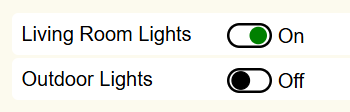
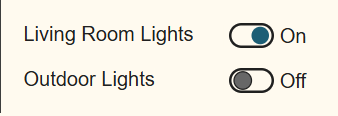
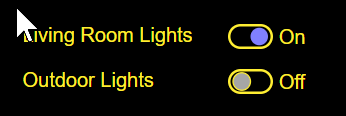
The following switch example uses systems colors to style the SVG elements used to indicate the on and off states. One reason current color cannot be used in this example is due to using div[role="switch"] to identify the switch component. The div elements current color is CanvasText, and the switch needs to use the colors associated with buttons: ButtonBorder, ButtonFace and ButtonText. In addition to the button colors, the system colors ActiveText is used for the fill of the SVG circle when the switch is on the on state and the GrayText is used as the fill in the off state to make the state easier to discern visually the state of the switch.
The following table shows how the graphical rendering changes for the switch using system colors for some Windows 11 contrast themes.
| Setting | Screen Shot |
|---|---|
| Contrast Theme: none (default) |
|
| Contrast Theme: Aquatic | 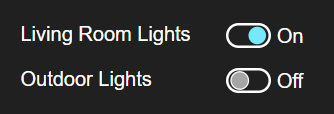 |
| Contrast Theme: Desert |
|
| Contrast Theme: Night sky |
|
CSS Code using <system-colors> value
@media (forced-colors: active) {
  div[role="switch"].system-color {
    background-color: ButtonFace;
    color: ButtonText;

    .label {
      color: ButtonText;
    }

    svg {
      rect {
        stroke: ButtonBorder;
      }

      circle.off {
        stroke: ButtonBorder;
        fill: GrayText;
      }
    }

    &[aria-checked="true"] svg circle.on {
      stroke-color: ButtonBorder;
      fill: ActiveText;
    }

    &:focus,
    &:hover {
      background-color: ButtonFace;
    }
  }
}
Examples using Forced Colors
Browser System Color Support
The following table identifies those system colors defined in CSS Color Module Level 4 which reliably support contrast themes in both Mozilla (e.g. Firefox) and Chromium (e.g. Chrome, Edge, Opera) based browsers. The colors in the table are the computed color for the operating system (e.g. Windows 10 or 11), browser and contrast theme you are using to view the table. Changing your contrast theme will update the computed colors in the table. The computed colors also may vary between operating systems and browsers.
NOTE: Some system colors not in the table may support a contrast theme color in either Mozilla (e.g. Firefox) or Chromium (e.g. Chrome, Edge, Opera) based browsers, but not in both. Only colors supported in both browsers are included in the table.
| System Color | Contrast Theme Color | Computed Color | Description |
|---|---|---|---|
| ActiveText | Hyperlink | #ff0000 | Text of active links |
| ButtonBorder | Button Text | #000000 | Base border color of controls |
| ButtonFace | Button Background | #efefef | Background color of controls |
| ButtonText | Button Text | #000000 | Text color of controls |
| Canvas | Background | #ffffff | Background of application content or documents |
| CanvasText | Text | #000000 | Text color in application content or documents |
| Field | Button Background | #ffffff | Background of input fields |
| FieldText | Button text color | #000000 | Text in input fields |
| GrayText | Inactive Text | #808080 | Text color for disabled items (e.g. a disabled control) |
| Highlight | Selected Background | #3367d1 | Background of selected items |
| HighlightText | Selected Text | #ffffff | Text color of selected items |
| LinkText | Hyperlink | #0000ee | Text of non-active, non-visited links |
System Colors that do not support Contrast Themes
The following list of system colors do not support contrast themes, since they do not render one of the contrast theme colors in both Mozilla (e.g. Firefox) and Chromium (e.g. Chrome, Edge, Opera) based browsers.
AccentColorAccentColorTextMarkMarkTextSelectedItemSelectedItemTextVisitedText
SVG Graphics versus Bit-Mapped Images for Components
Limitations of Bit-Mapped Images
The colors of pixels used in bit-mapped images (e.g. .png, .jpeg) can respond to media queries by changing the actual image rendered or by applying a CSS filter to the image. Even when one or more of these techniques are used to respond to changes in contrast settings the resulting images may still be difficult or impossible for people with some types of visual impairments to see. Low resolution images also do not scale smoothly when the browser zoom features are used to increase the size of rendered content and the resulting distortion will make it more difficult or impossible for people to identify the component.
Note: Bit-mapped images used for components should meet WCAG 1.4.3: Contrast (Minimum) requirement.
Benefits of SVG Graphics
SVG graphics can respond to contrast related media queries including prefers-contrast, prefers-color-scheme and forced-colors to change the styling of components. SVG provides smooth scaling of the graphics as the size of components are adjusted using browser zoom features. SVG elements can also adapt to a wide variety of screen sizes and load faster due to their smaller size than equivalent bit-mapped images.
Using Current Color Value
The SVG elements of custom components should match the color styling of other features in the component based on user settings, for example users applying a Contrast Theme in Microsoft Windows. When SVG elements are used in custom components the currentcolor value can be used for fill and stroke properties to inherit color styling from ancestor elements, reducing the need for media queries to synchronize colors.
Examples using current color:
- Checkbox (Mixed-State)
- Disclosure (Show/Hide) for Answers to Frequently Asked Questions
- Radio Group Using aria-activedescendant
- Media Seek Slider
- Vertical Temperature Slider
| Feature | Bit-Mapped | SVG |
|---|---|---|
| Scale to Screen Size | Distortion1 | Yes |
| Smooth Zooming | Distortion1 | Yes |
| Color Changes using Media Queries | Image substitution or CSS filters | Yes |
1 Distortion dependent on image quality and rendering dimensions.
Testing for Contrast Theme Support
High contrast testing requires setting operating system contrast features or using browser extensions or configuration to emulate high contrast.
Operating System High Contrast Settings
- Windows 10 and 11: Change color contrast in Windows
- macOS: Change Display settings for accessibility on Mac
- Linux GNOME: Adjust the contrast
- iPad: Make iPad text easier to read with accessibility features
- iPhone: Make iPhone text easier to read with accessibility features
- Android: Change text & display settings
Chrome High Contrast Options
The Chrome browser has Render options in the DOM Inspector to enable and disable contrast related media queries. Use the DOM Inspector Render Tab: Emulate and you can change the setting for prefers-color-scheme: dark and forced-colors: active.